From a Kerf model to a photo your client signs off on.
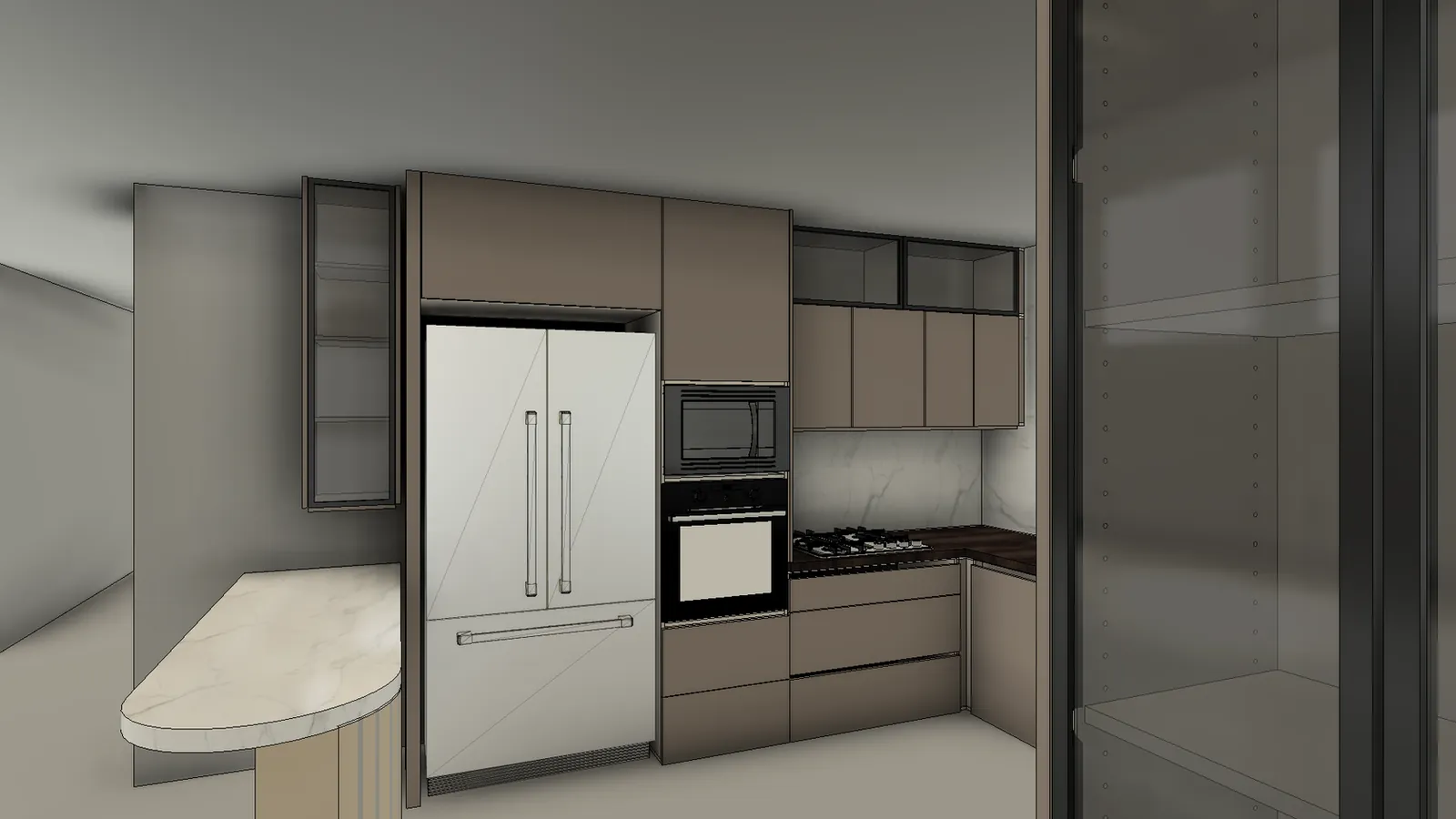
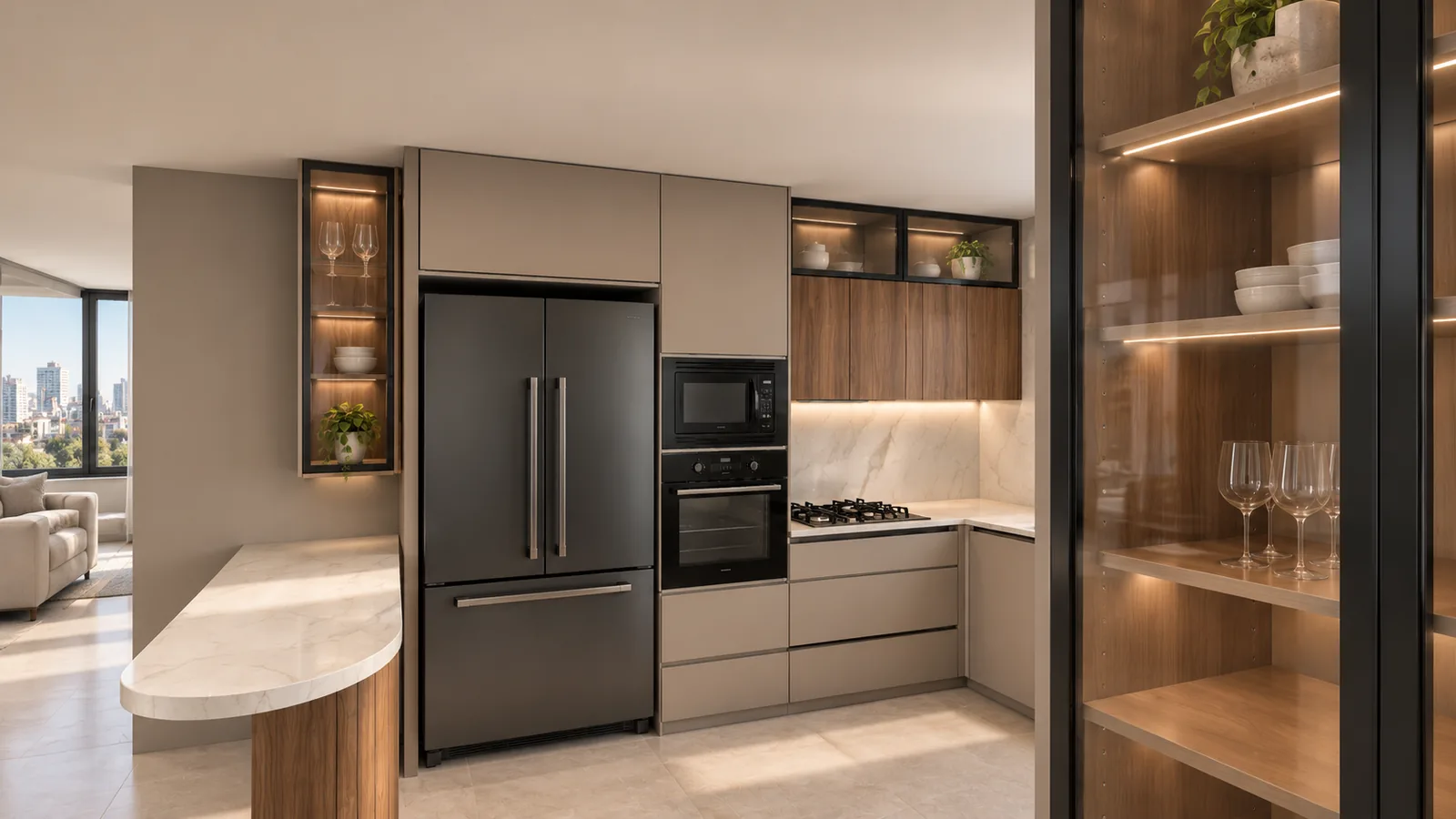
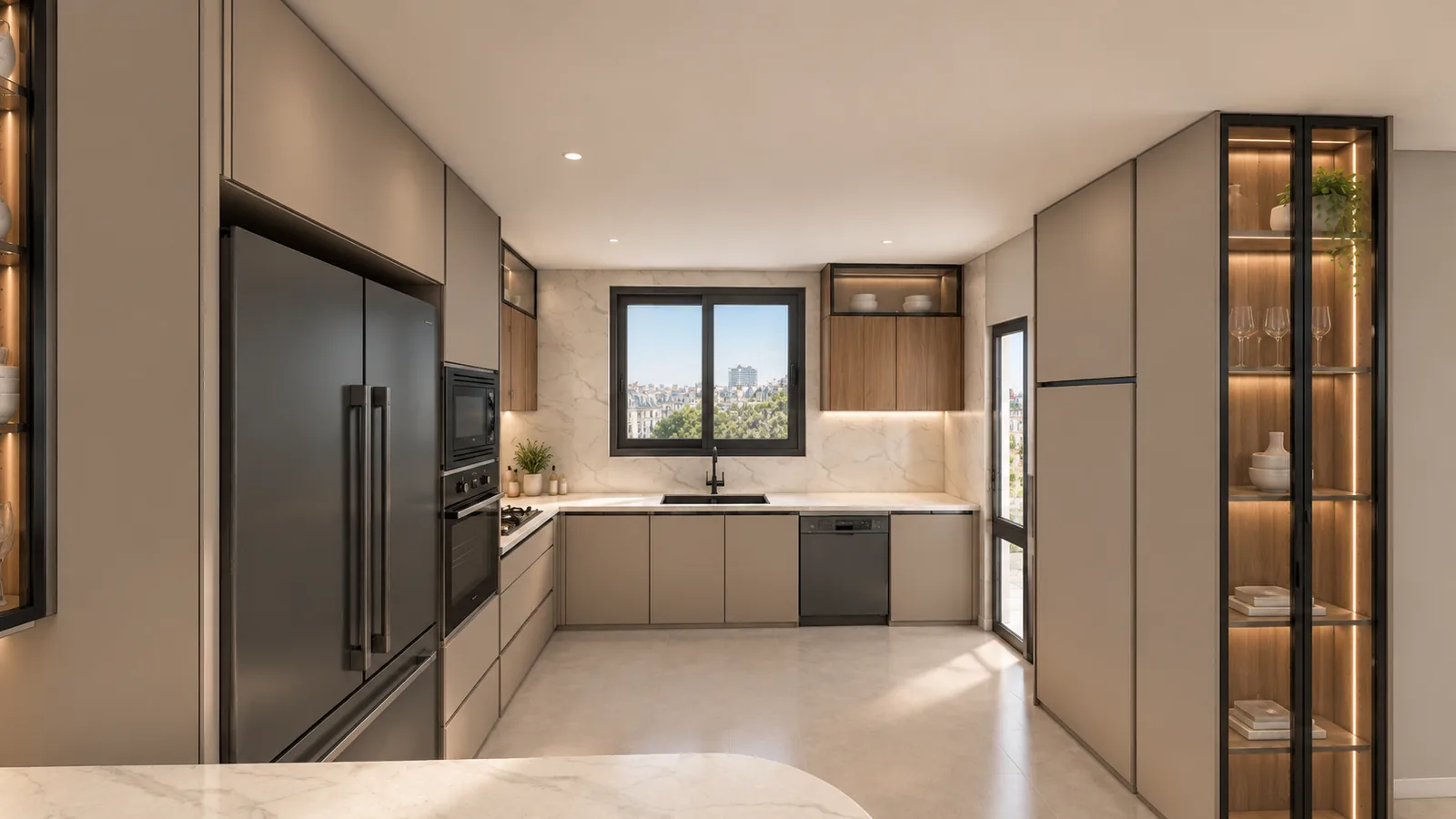
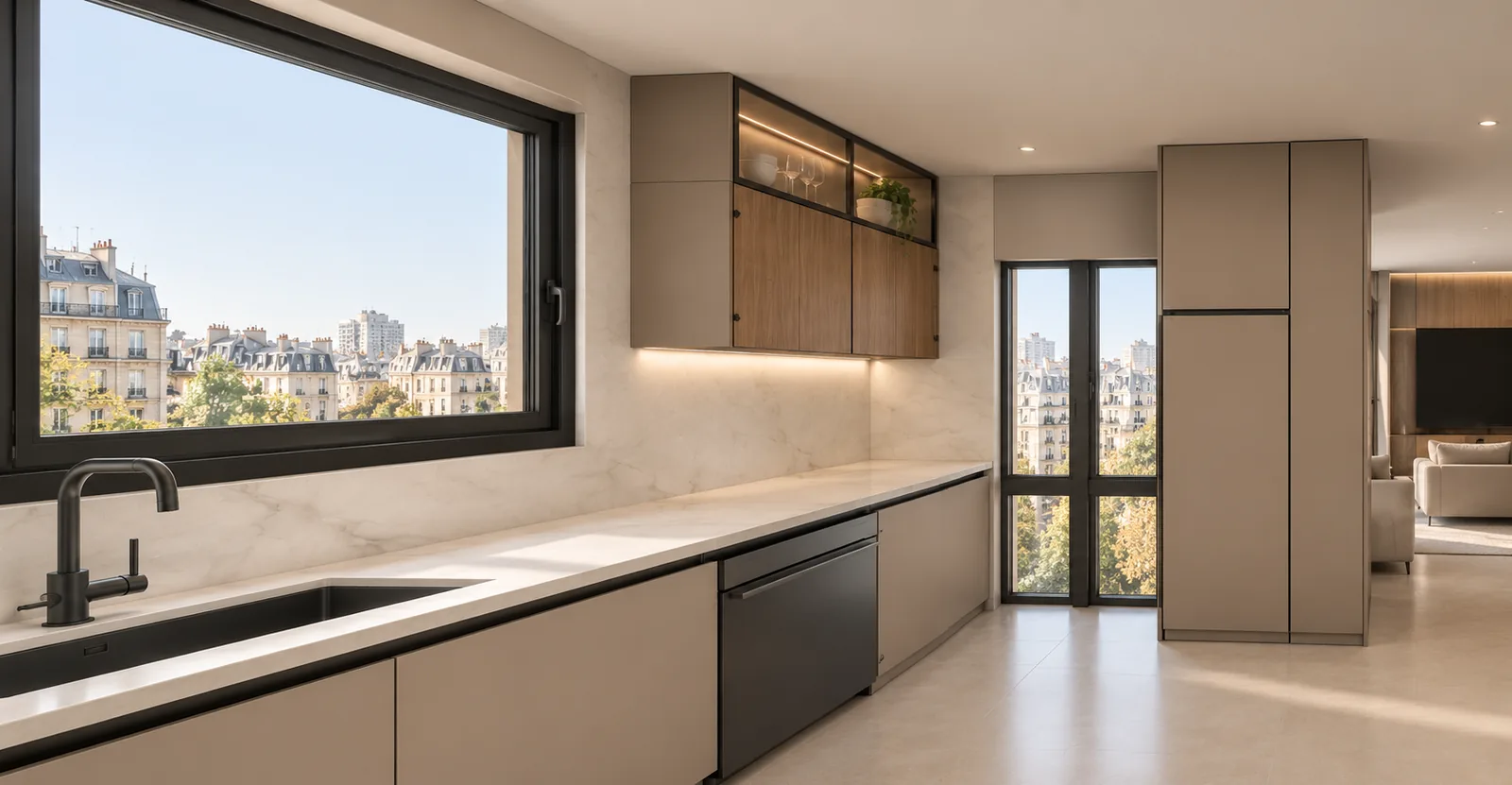
Kerf builds the kitchen in Fusion and Photo Shoot frames it. One reference photo sets the look, and an AI image tool renders each frame in it: the same cabinets, the same lines, a finished room.
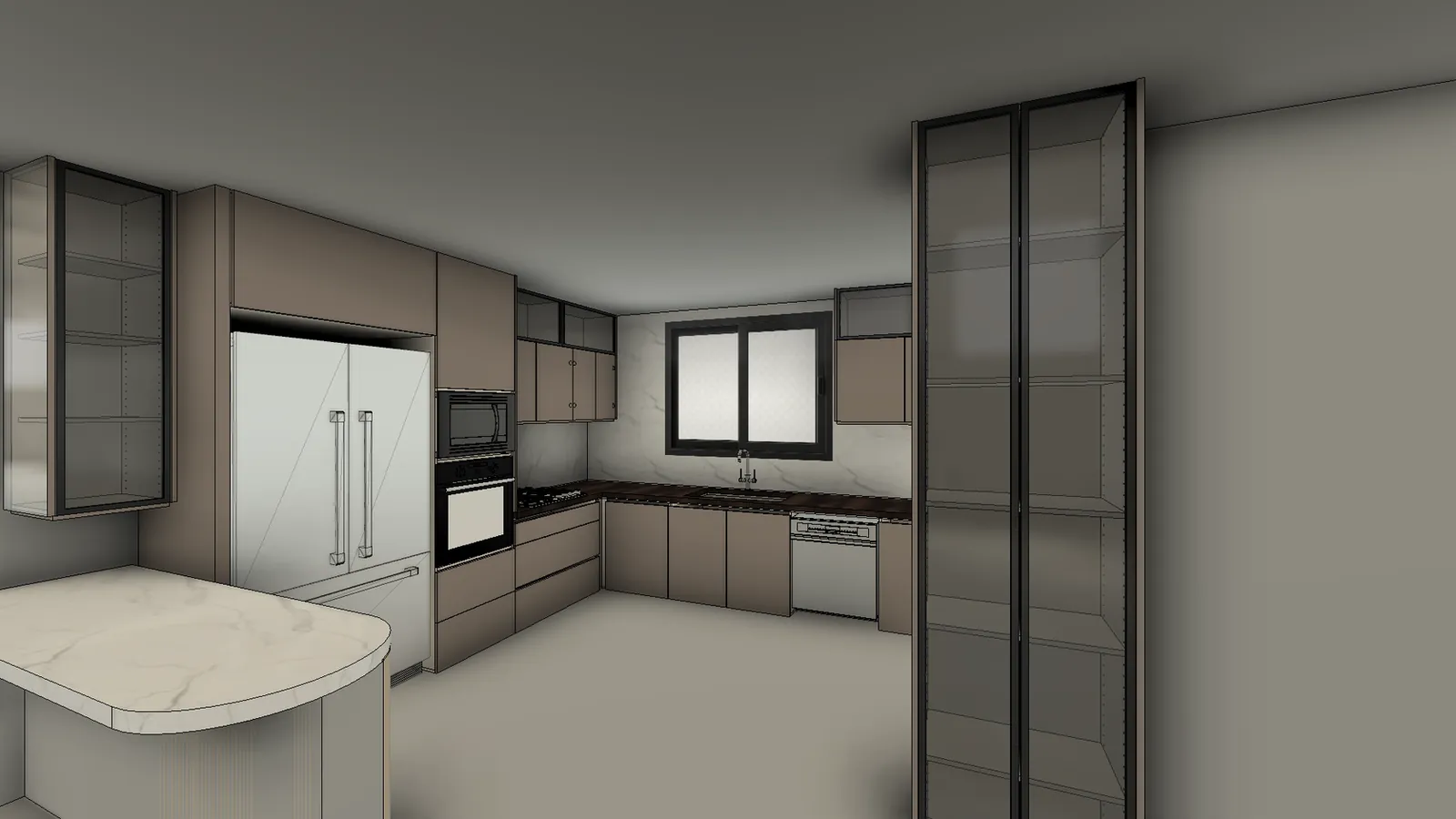
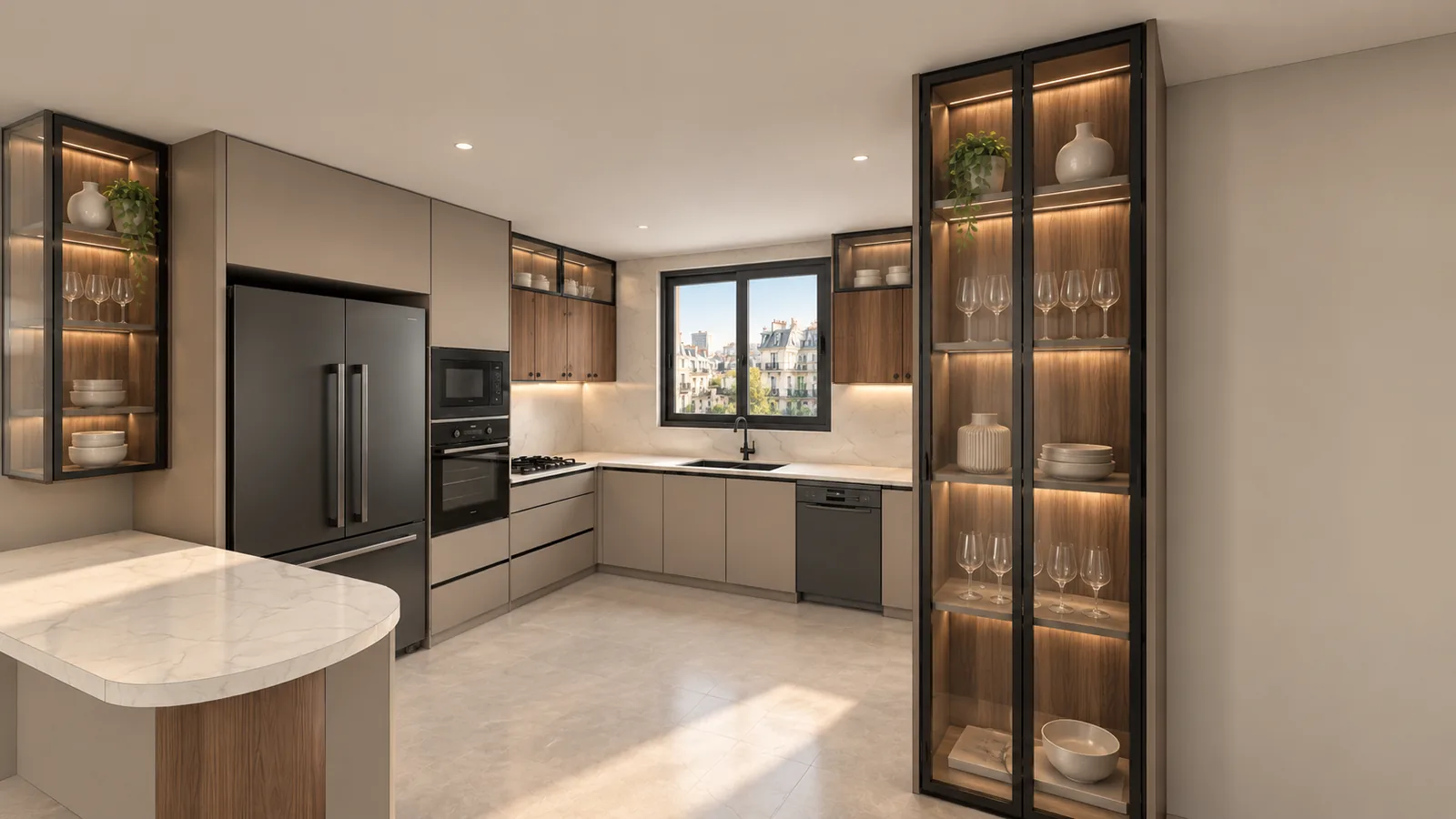 KERF FRAMEAI RENDER
Four steps, one reference photo.
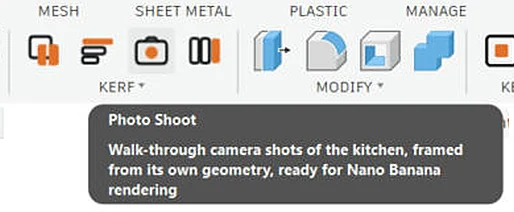
Photo Shoot is a Kerf command; the rendering happens in the AI image tool you choose. The frames already carry everything the render needs to stay true to the model.
- 1
Build and theme the kitchen
Draw the plan, build it with Kerf, and pick a Kerf Theme. The frames carry the real geometry: every door line, appliance and countertop edge.
- 2
Run Photo Shoot
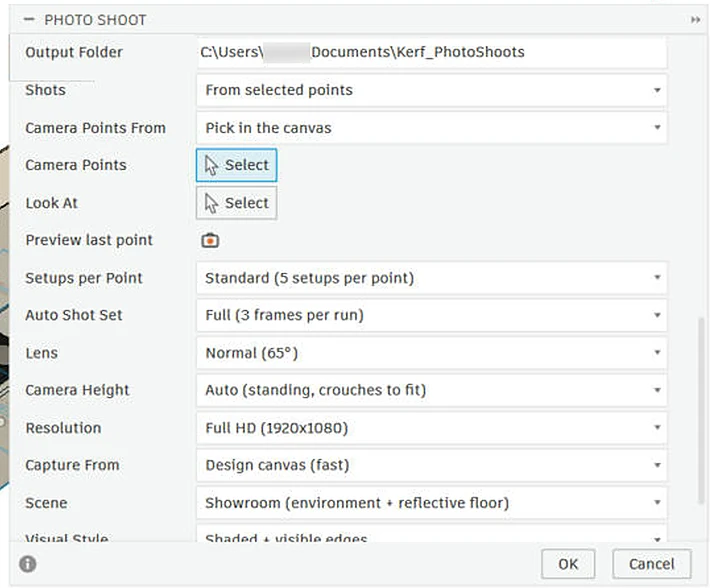
Kerf > Photo Shoot reads the layout and stands the camera where a photographer would: standing height, vertical lines kept vertical, the lens chosen to fit. Pick camera points in the canvas or let it plan the set. Frames go to Documents/Kerf_PhotoShoots in Full HD or 4K, and each one is saved as a Named View.
- 3
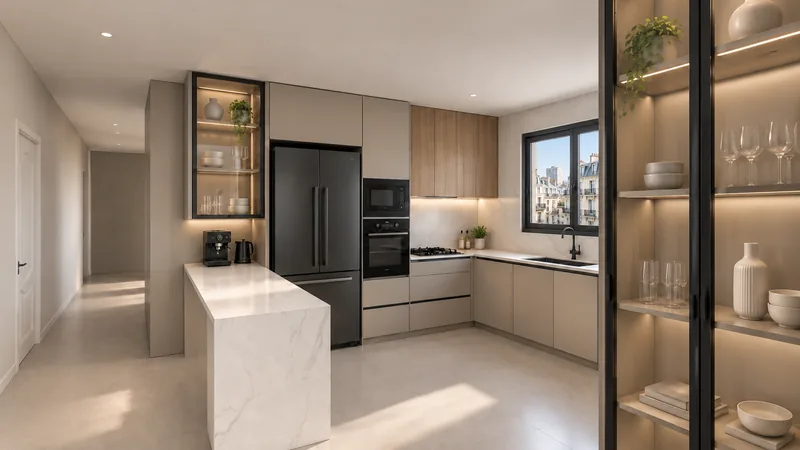
Choose one reference photo
One photo of the finish you want: the fronts, the worktop, the floor, the light. The same reference for every frame is what keeps the set consistent.
- 4
Render each frame
In an AI image tool that takes an image and a reference, attach the frame and the reference photo, and paste the prompt below. The geometry comes from the frame, the look from the reference. These were rendered in Astra.
Copy it, change the look, keep the geometry.
Attach the frame first and the reference photo second. If a render moves a cabinet or invents one, run it again: the frame is the truth.
Turn this Autodesk Fusion view into a photorealistic interior photograph. Keep everything that is modelled exactly as it is: the cabinets, doors and drawer lines, appliances, countertops, walls, windows, and the camera position and perspective. Use the reference photo only for the look: materials, colours, lighting, styling and mood. Soft natural daylight from the windows, realistic shadows and textures, a few styling props on the worktops and open shelves. Do not add, remove or move any cabinet or appliance, and add no text or watermark.
Six frames, one reference, one look.
 KERF FRAMEAI RENDER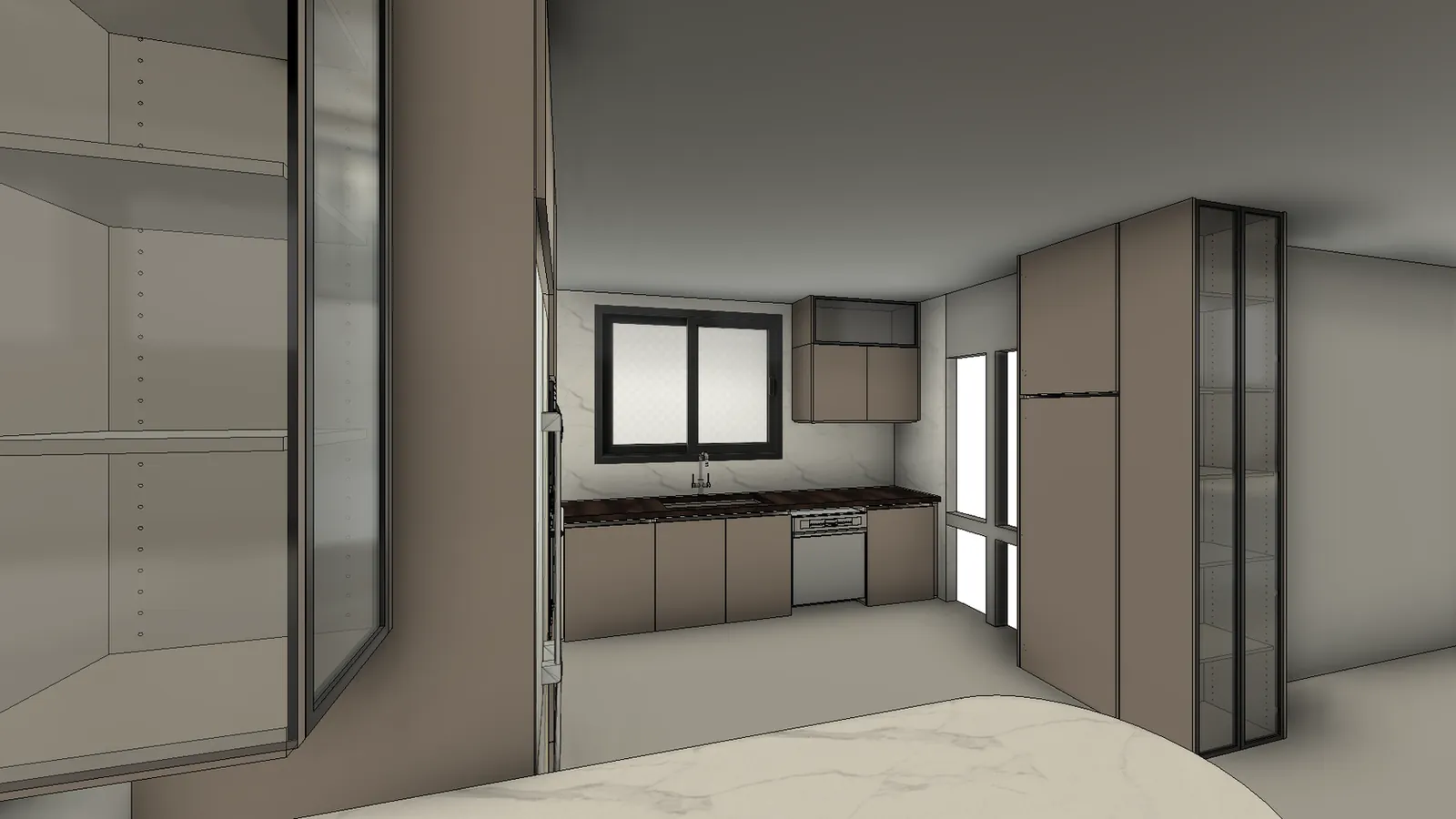
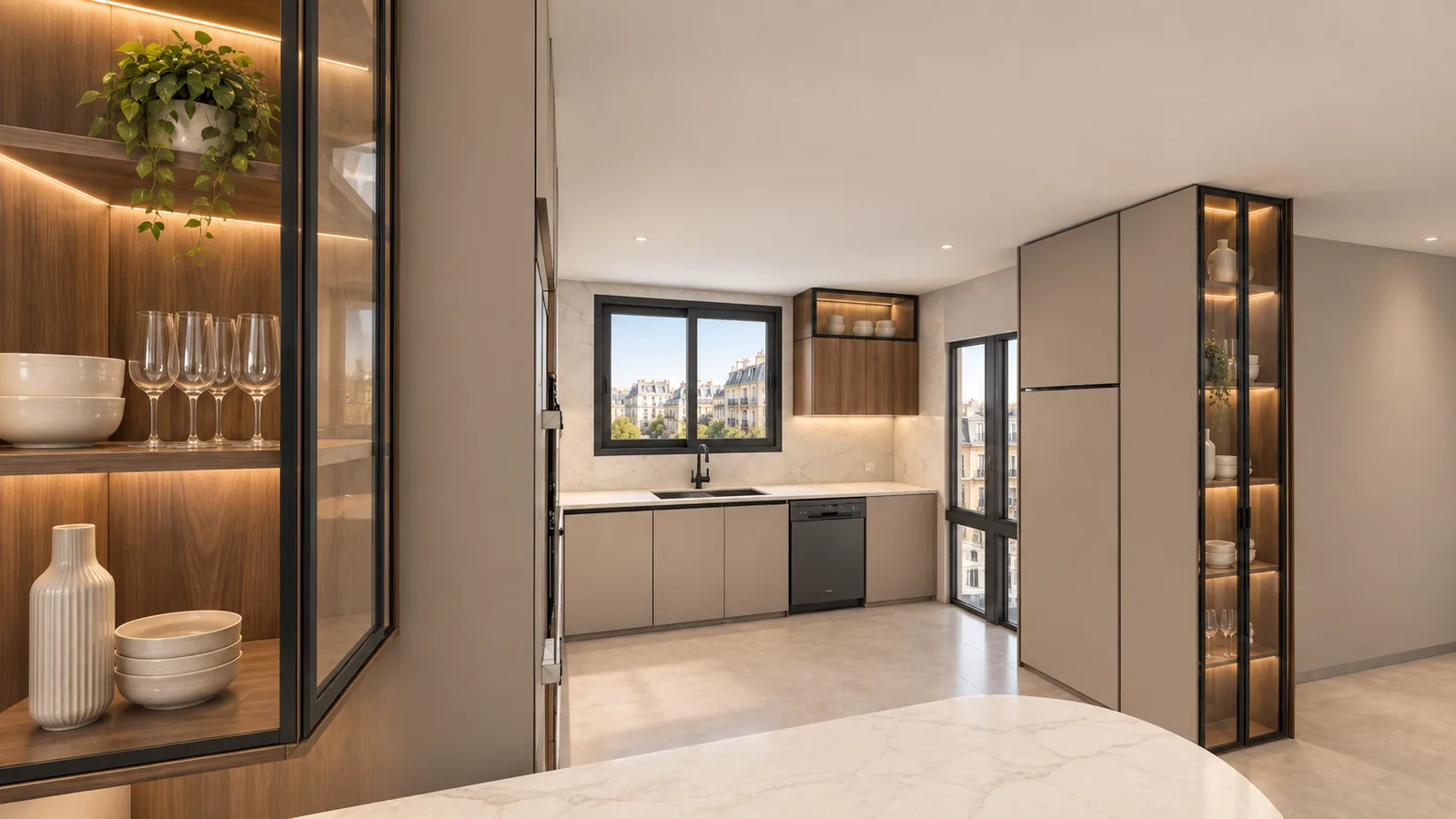 KERF FRAMEAI RENDER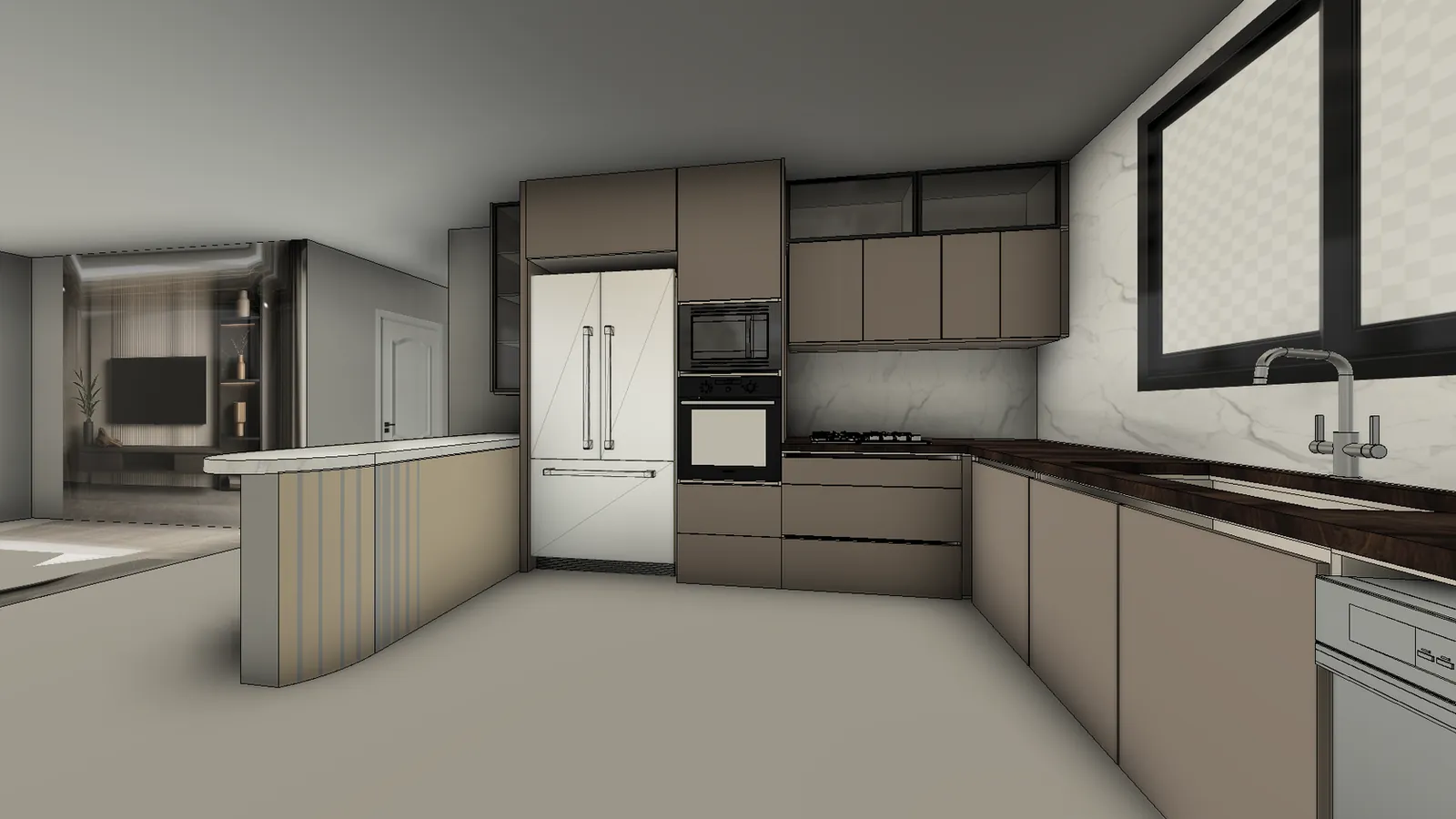
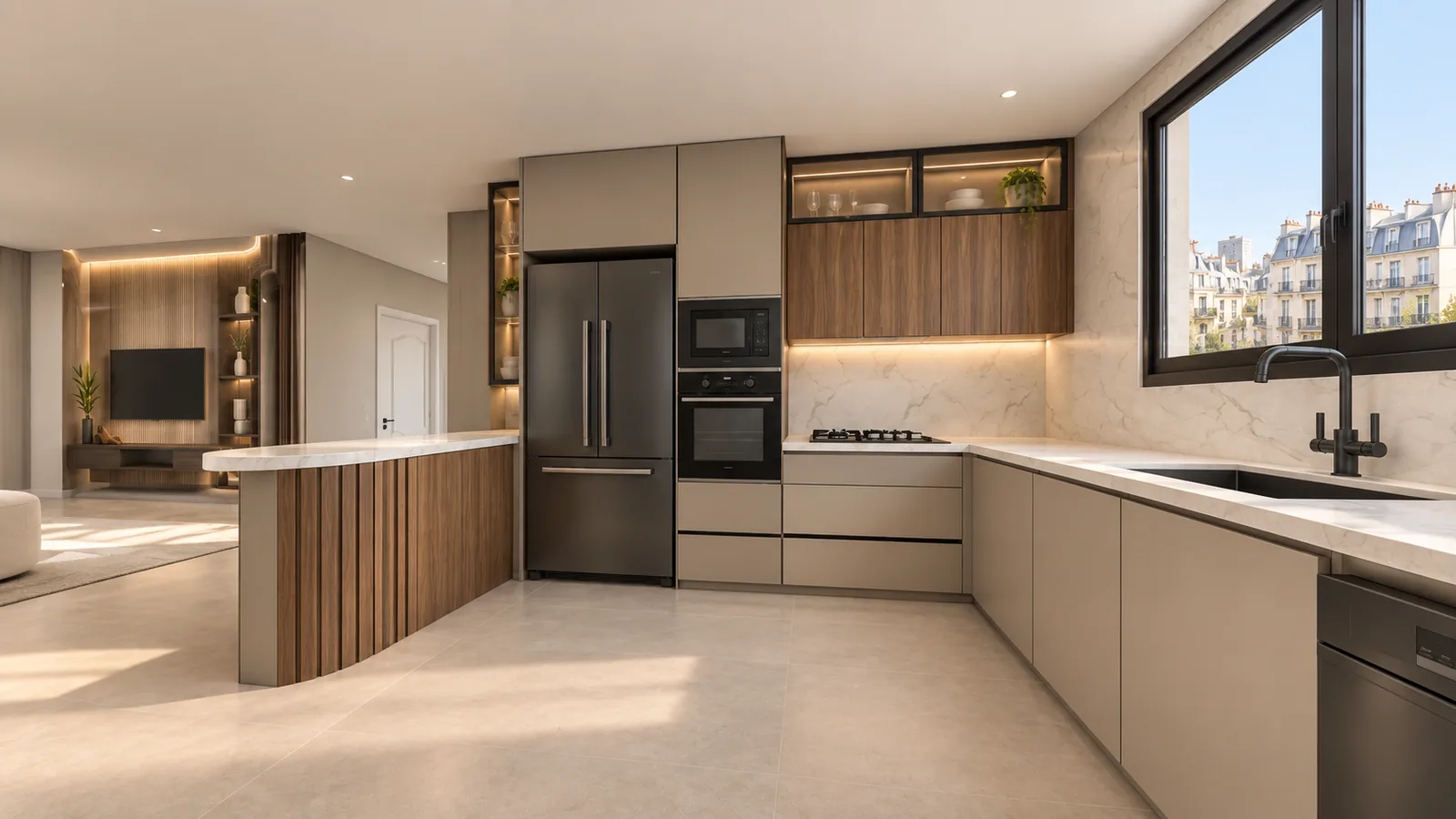 KERF FRAMEAI RENDER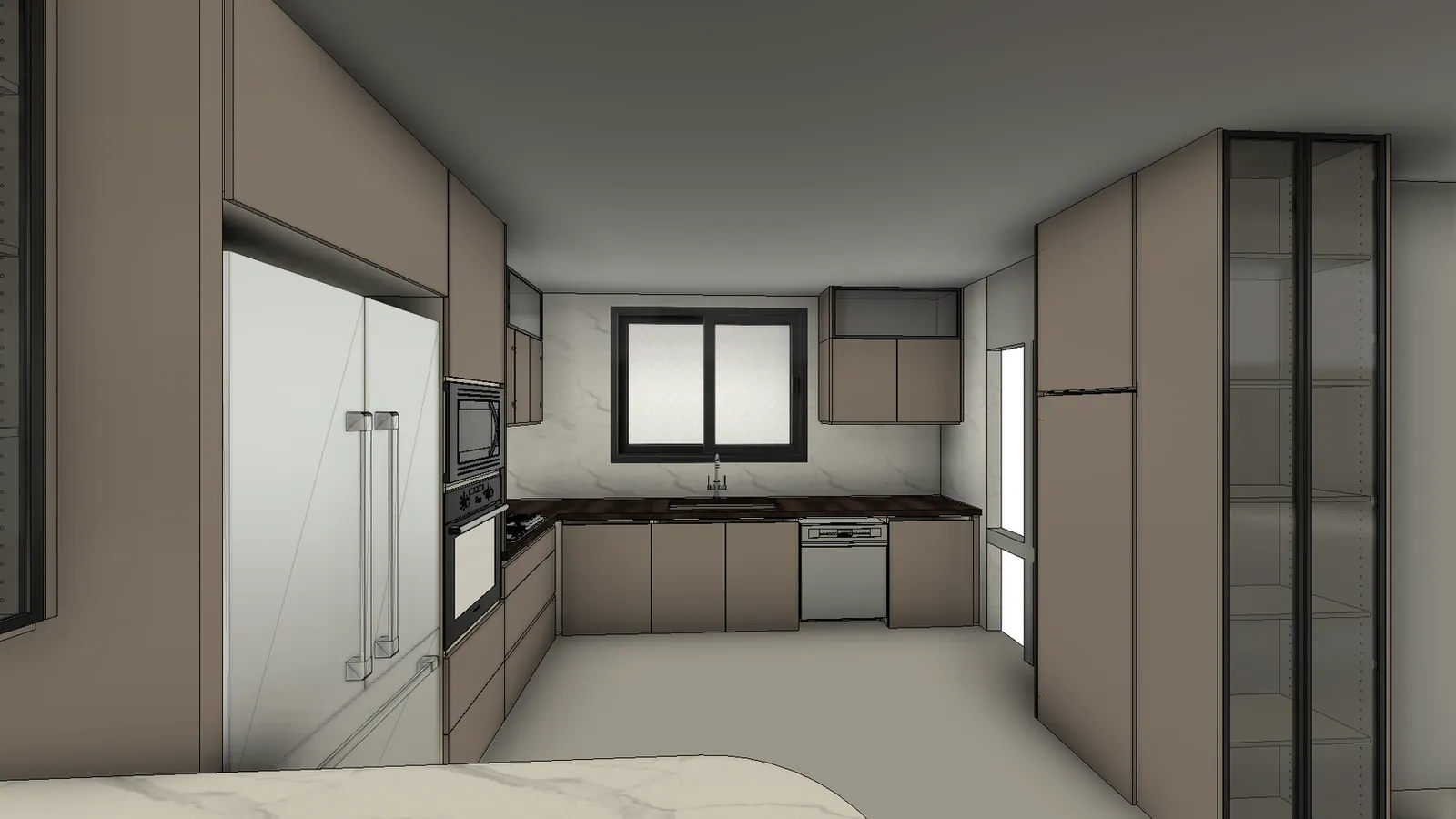
 KERF FRAMEAI RENDER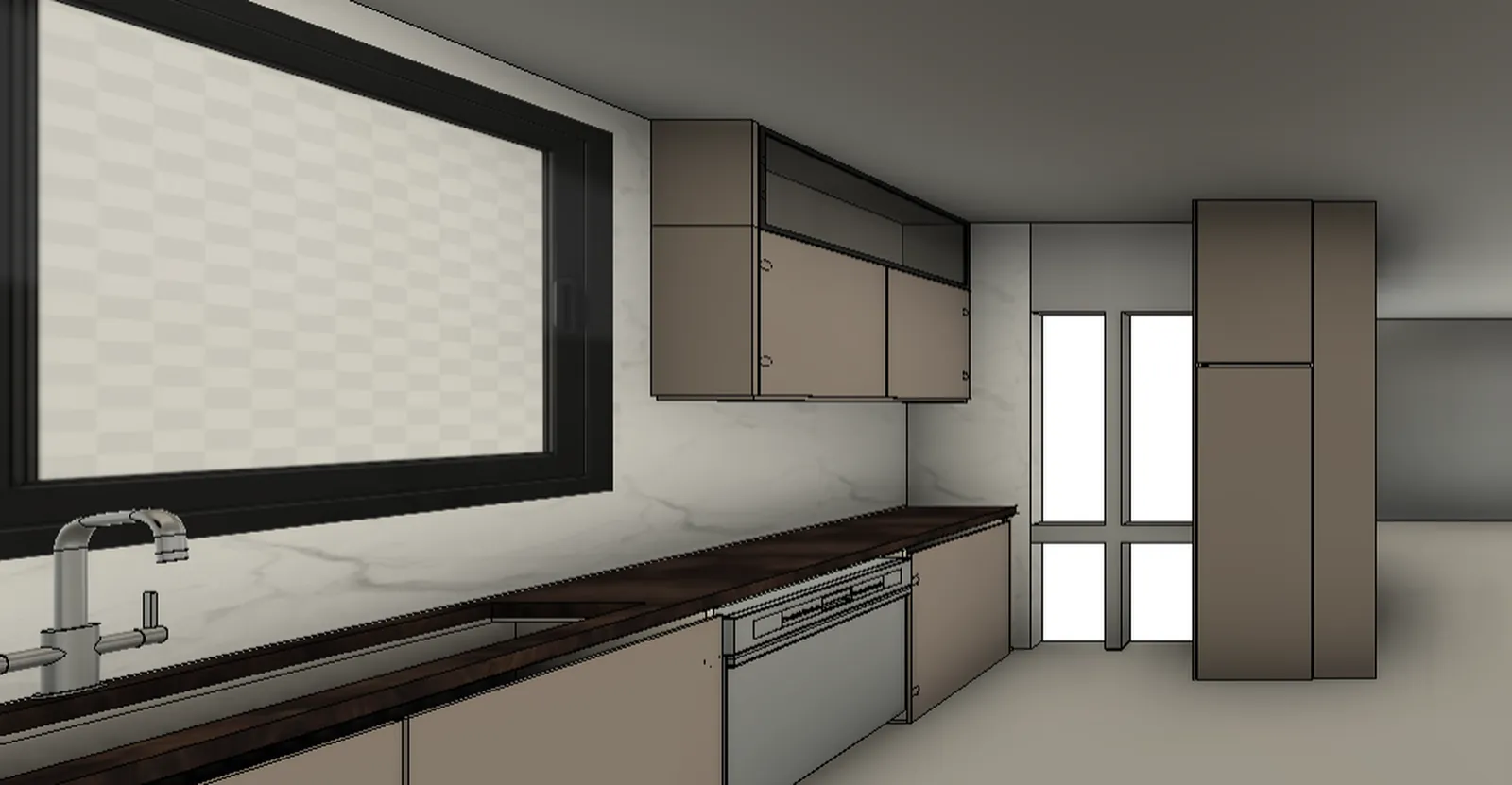
 KERF FRAMEAI RENDER
Watch it: Photo Shoot to AI render.
What makes a good render.
- Theme first. A Kerf Theme close to the reference gives the AI less to guess.
- Shaded with visible edges. The edges keep door and drawer lines crisp in the render.
- Full HD or 4K frames. Set the resolution in Photo Shoot; small frames give soft renders.
- One reference for the whole set. Change it and the look changes from frame to frame.
- Check every frame against the model. An AI render is a picture, not a drawing: dimensions and quantities come from Kerf.